This post is inspired by a question I received on LinkedIn on how to copy files to a project based Teams team using Power Automate at the time of provisioning. This Flow can provide one of the building blocks for that larger solution.

This Flow requires a Graph API connection. I outline how to do this in the following blog post: Use MS Lists and Power Automate to provision Private Channels in Teams.
Create a new Flow from Power Automate > Create new > Scheduled from blank. Provide a Flow name, i.e. “Get WebURL for a Teams team” and click “Create”.

Create a new Initialize variable action. Using an Object variable will reduce the number of variable declarations within the Flow. Set Name to “varConnectInfo”, Type to “Object” and Value to:
{
   "varDirectoryID": "<Enter your Directory ID>",
   "varApplicationID": "<Enter your Application ID>",
   "varSecret": "<Enter your Client Secret Value>"
}

Create a new Compose action. Set Inputs to variable “varConnectInfo”.

Insert a new Microsoft Teams – Get a team step. Set Team to a team of your choosing. In my example I am using a Team called “NY Demo”. This could easily be switched with a dynamic value from a previous action like a Microsoft Teams Create a team action.

Add a Azure AD – Get group step and set Group Id to “id” from the previous Get a team step.

Insert a new HTTP action and set:
- Method to “GET”
- URI to https://graph.microsoft.com/v1.0/groups/<Id>/drive where <Id> is from the previous Azure AD – Get group step
- Authentication to “Active Directory OAuth”
- Tenant to “variables(‘varConnectInfo’)?[‘varDirectoryID’]”
- Audience to https://graph.microsoft.com
- Client ID to “variables(‘varConnectInfo’)?[‘varApplicationID’]”
- Credential Type to “Secret”
- Secret to “variables(‘varConnectInfo’)?[‘varSecret’]”

Save and test the Flow. Copy the output from the HTTP step.
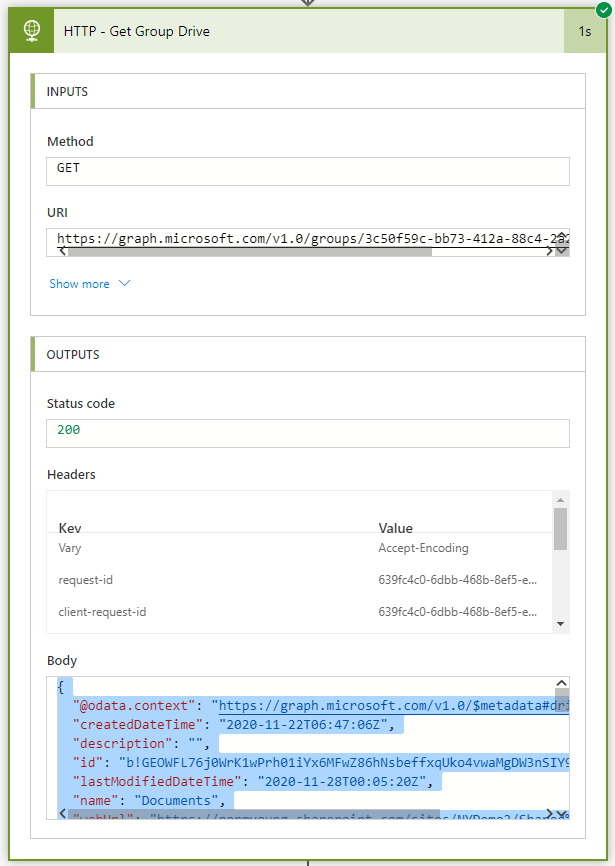
Add a Parse JSON step, set:
- Content to “Body” from the previous HTTP step
- Click “Generate from sample” and past in the copied output from the HTTP step

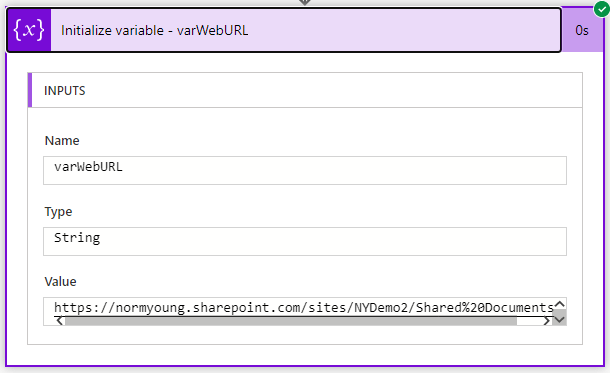
Insert a new Initialize variable and set Name to “varWebURL”, Type to “String” and Value to “webUrl” from the previous Parse JSON action.
Save and test your Flow. If all goes well the “varWebURL” will store the web URL to our Teams team underlying SharePoint site and default drive (aka Document Library). Copying files at this point should be fairly simply using the SharePoint – Copy files action. Don’t forget to include the Teams channel folder name in the SharePoint address, i.e. “/General”.
I like this pattern for centralized deployment and management of Teams for projects, committees and other types of working groups where control and consistency is key.
Thanks for reading!
NY
 Norm Young
Reblogged this on El Bruno.
LikeLike
where do we get the Directory ID, Application ID and Secret Value
LikeLike
Hello HRY,
See Part 1 – Create Graph API Connector from https://normyoung.ca/2020/11/27/use-ms-lists-and-power-automate-to-provision-private-channels-in-teams/.
Thanks for reading!
NY
LikeLike
Very helpful!
There is an easier way for Office Graph. You can use a connector called “HTTP with Azure AD > Invoke an HTTP Request” to call the Office API using your AD credentials.
Second, I believe the Group Id GUID is always equal to the Team Id GUID? I’m not 100% confident in this, but might save a step by simply getting the GUID after looking up the Team?
There are also other “API” connectors that use AD, for example SharePoint also has one.
LikeLike
Hi Joel,
The HTTP with Azure AD action is new to me and I will try it out next time I am doing Graph API work in Flow. I just checked the Group ID and Team ID and they are same.
Thanks for the feedback and thanks for reading!
NY
#AlwaysLearning
LikeLike
Hey norm, getting invalid expression when attempting to input the tenant following your guide. Any thoughts?
variables(‘varConnectInfo’)?[‘varDirectoryID’]
LikeLike
Hey chanceofflight,
Sorry for the delayed response. Ensure that the single quote are straight single quotes:
Bad = variables(‘varConnectInfo’)?[‘varDirectoryID’]
Good = variables(‘varConnectInfo’)?[‘varDirectoryID’]
I hope that helps and thanks for reading!
NY
LikeLike
Hello Norm,
Thank you for the explanation, it is very helpful.
I have one issue on when I use this.
At the “Get a Team” action, I added dynamic content (Variable) which is the exact name of the Team. When I try this, I get status code 400, with error:
{
“error”: {
“code”: “BadRequest”,
“message”: “teamId needs to be a valid GUID.”,
“innerError”: {
“date”: “2023-04-21T11:21:49”,
“request-id”: “f8db8b33-105e-4b88-be46-254b650e4aaa”,
“client-request-id”: “f8db8b33-105e-4b88-be46-254b650e4aaa”
}
}
}
For your information, in this Logic App I first create a Team based on a submitted form.
After creating the Team I have a delay of 5 minutes.
Then I am trying to use the URL of the Team site using your instruction.
LikeLike
Hi Jeroen,
Names are not unique identifiers with MS Teams so I’m not surprised that the Get a Team action failed. That action provides a user friendly experience that allows the user to pick the team and in the background uses the GUID. If you are going the variable route you will need another way of determining the GUID prior to the Get a Team action. Test by using the GUID and I suspect your Flow will work.
Thanks for reading!
NY
LikeLike